


Reasons why you cannot build, run, or export an EzyPlatform plugin project
Updated at 1770559108000You may be new to coding EzyPlatform projects or haven’t worked on one for a long time, which can lead to build failures. Below are some common issues and how to fix them.
Cannot build after importing the project into IntelliJ
The cause may be that you are not using Java 8. You can go to
File -> Project Structure -> Switch JDK to version 8.If you are already using Java 8, there may be an environment variable issue. You can refer to this guide to fix it.
If environment variables are set correctly, the cause may be that you have not pulled the latest version of ezyplatform-development and built it.
You can run
git pull to get the latest version and run bash build.sh on Linux or .build.bat on Windows to build.If you already pulled and built the latest ezyplatform-development, the issue may be that your plugins are not updated to the latest version. You can refer to this guide to upgrade plugins.
If your plugins are already updated, the issue may be that the plugin versions in your
pom.xml file do not match the versions installed in EzyPlatform. For example, you currently have:<properties> <ecommerce.version>1.1.1</ecommerce.version> </properties>
But the ecommerce version in EzyPlatform is 1.1.2, then you must update it to:
<properties>
    <ecommerce.version>1.1.2</ecommerce.version>
</properties>
If the versions match and you still cannot build, you may be hitting a checkstyle error like this:
[WARNING] src/main/java/org/youngmonkeys/accounting/web/service/WebALedgerEntryService.java:[25,8] (imports) UnusedImports: Unused import - java.math.BigDecimal.
src/main/java/org/youngmonkeys/accounting/web/service/WebALedgerEntryService.java:[25,8] (imports) UnusedImports: Unused import - java.math.BigDecimal.
You need to fix the checkstyle errors and build again.
If you still cannot build, you might be opening the project in both IntelliJ and VSCode at the same time. If VSCode has Java extensions installed, it may also try to build and conflict with IntelliJ. You should remove the Java extension from VSCode and try again.
If there is no conflict and you still cannot build, contact us via discord.
Cannot run the project
Even if the build succeeds, you may not be able to run the project due to some error. The cause may be incorrect annotations or an incorrectly declared class. You can set a debug point in the
EzyBeanAutoConfig class like this: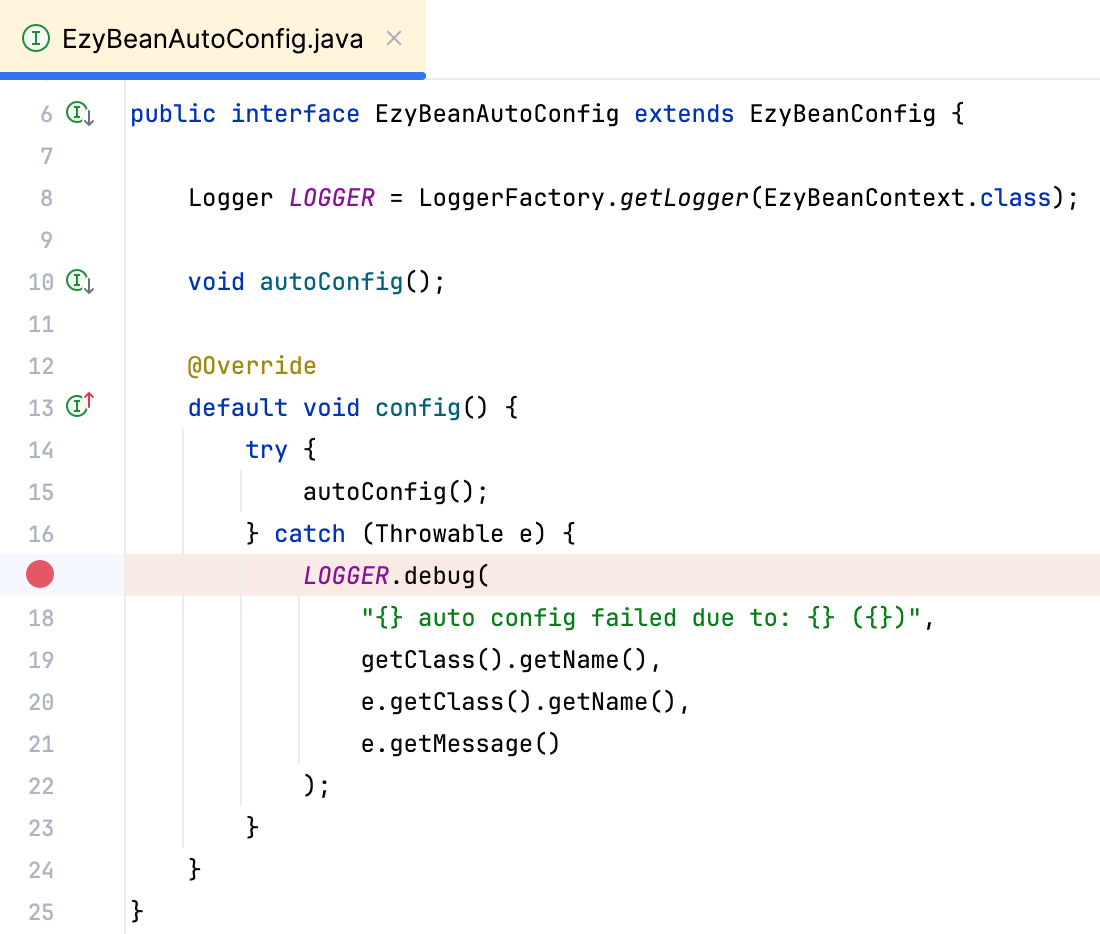
Then run the program in debug mode. If you don’t know where
EzyBeanAutoConfig is, in IntelliJ you can quickly press Shift Shift, type EzyBeanAutoConfig in the search box, wait a moment, and it will find it for you.If there is an error, execution will stop at the failing debug line.
If debugging shows no error, contact us via discord.
The project runs but cannot export
If the project builds and runs but cannot be exported, the cause may be that you have not installed the EzyPlatform SDK or accidentally removed it. You can refer to this guide to reinstall it.
If the SDK is already installed, you may have accidentally modified the
export.sh or export.bat files. Restore them to their default versions.If everything looks correct and you still cannot export, contact us via discord.